Why Do So Many People Still Search Online For How To Use Skype
Skype isn’t the new kid on the block anymore, and honestly, it never tried to be flashy. For close to two decades it sat quietly on millions of desktops as the go-to app for calling family abroad, running quick work meetings, or just texting a friend without paying for SMS. Even with Microsoft Teams, Zoom, and WhatsApp eating into its territory, a surprising number of people still type “how to use skype” into Google every single day. Maybe they inherited an old laptop with it pre-installed, maybe their workplace still uses a legacy version, or maybe they just like familiar things.
Whatever brought you here, this guide walks through everything from creating an account to making your first call without the jargon-heavy explanations most tech sites throw at you. We’ll cover the basics, the slightly hidden features, and a few troubleshooting tricks picked up from actually using the app for years. By the end, you’ll know how to use Skype confidently, whether you’re calling your grandmother in another country or hosting a small team huddle.
One quick note before we start: Microsoft did retire the original consumer Skype app in 2025, folding most of its features into Teams. If you’re on an older device or a region where the classic app is still active, this guide still applies. If you’ve already been nudged toward Teams, a lot of the same logic carries over, since Microsoft borrowed heavily from Skype’s playbook when designing it.
It’s also worth saying that searching for how to use Skype isn’t a sign you’re behind the times. Plenty of remote workers, students, and small business owners still rely on it daily, and there’s nothing wrong with sticking to a tool that simply works for you.
Why Skype Still Matters Today
There’s a reason Skype stuck around for as long as it did. Free voice and video calls over the internet weren’t exactly common when the app launched, and it genuinely changed how families separated by oceans kept in touch. A grandmother in Lahore could see her grandkids in London without paying a cent beyond her internet bill, and that mattered more than any flashy feature ever could.

Even today, plenty of small businesses, freelancers, and older users prefer Skype’s simplicity over the cluttered interfaces of newer apps. It does one job well: connect two or more people through voice, video, or text. No algorithm feeds, no endless notification badges, just a contact list and a call button. That simplicity is exactly why people keep searching for how to use Skype instead of jumping ship entirely.
Setting Up Your Skype Account
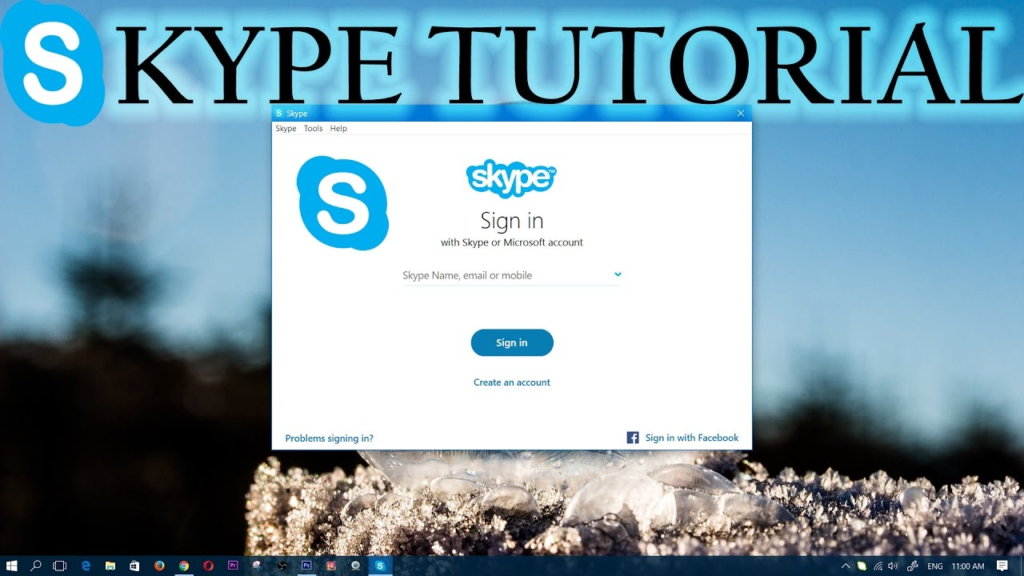
Before anything else, you need an account, and the process barely takes five minutes. Head to Skype’s official site or download the desktop app, then sign up using a Microsoft account, an email address, or a phone number. If you already use Outlook, Xbox, or OneDrive, you can simply log in with that same Microsoft account and skip a step. For anyone setting up communication tools for the first time, it also helps to check your home network is solid enough to handle calls without dropping, since even the best app struggles on a shaky connection — something covered well in this home Wi-Fi coverage guide if your signal tends to wander around the house.
Once you’re signed in, fill out your profile with a real name and a photo people will recognize, especially if you’re using Skype for work. Strangers and old contacts are far more likely to accept a call request from someone whose profile actually looks like them. Skip this step and you’ll spend half your time explaining who you are over text before anyone picks up.
How To Use Skype Basics
At its core, learning how to use Skype comes down to three things: adding contacts, starting calls, and sending messages. The contact list sits on the left side of the screen on desktop, or behind a simple menu on mobile. Tap the plus icon, search a username, email, or phone number, and send a request. Once accepted, that person shows up permanently in your contacts.
From there, calling is as simple as clicking their name and choosing the phone or camera icon, depending on whether you want voice only or video. Messaging works the same way most chat apps do now, with read receipts, typing indicators, and the option to send files or photos directly in the conversation. None of it is complicated, which is exactly the point.
Making Your First Skype Call
Your first call can feel a little awkward, mostly because you’re not sure what everyone else can see or hear. Before dialing, check your microphone and camera through the settings menu, where Skype lets you do a quick test call to hear your own voice played back. It sounds silly, but it saves you from an embarrassing “can you hear me” loop five seconds into an actual conversation.
Once you’re ready, click on a contact’s name and hit the call button. Group calls work almost identically, you just add multiple names before pressing connect. Skype supports calls with up to 100 people on certain plans, though anything beyond ten or so participants tends to get chaotic without someone actively moderating who’s speaking.
Understanding The Skype Interface Layout
The interface hasn’t changed dramatically over the years, which honestly works in its favor. On the left, you’ll find your chats and contacts; in the middle sits the active conversation or call; and along the top are icons for video, voice, and additional options like adding people to a call. It’s not the prettiest design in 2026, but it gets out of your way once you know where things live.
Mobile users get a slightly simplified version, with swipe gestures replacing some of the desktop’s clickable menus. Swipe left on a conversation to mute or delete it, swipe right to mark it unread. These small shortcuts make a real difference once you’re juggling dozens of contacts and don’t want to dig through menus every time.
Tablet users sit somewhere in between, often getting a layout that mirrors desktop more closely than the phone app does, depending on screen size and orientation. If you switch between a phone and a tablet throughout the day, it’s worth spending a few minutes on each to learn where buttons shift around, since muscle memory from one doesn’t always transfer cleanly to the other.
How To Use Skype Chat
Chat often gets overlooked because video calling tends to steal the spotlight, but knowing how to use Skype chat properly saves you a ton of time. You can send quick messages, share documents up to 300MB, and even schedule messages to send later if you’re working across time zones. Group chats support up to 300 participants, which is more than enough for most family threads or small project teams.
One underrated feature is message editing. Send something with a typo or the wrong info, and you can edit it within a short window rather than sending an awkward correction right after. Reactions work too, so a simple thumbs up can replace an unnecessary “okay, got it” reply that clutters the thread for no reason.
Screen Sharing During Skype Calls
Screen sharing turned Skype from a casual chat app into something businesses could actually rely on. During any active call, click the screen share icon and choose whether to share your entire desktop or just a specific window. This comes in handy for remote tech support, walking a coworker through a spreadsheet, or showing your aunt how to use the printer over video instead of describing it badly over the phone.
For anyone managing larger remote teams, it’s worth comparing how Skype’s sharing tools stack up against dedicated platforms; resources from TechTarget’s communication tools coverage break down how different apps handle bandwidth and quality during heavy screen-sharing sessions. Skype generally holds its own for smaller groups, though performance can dip once you’re sharing high-resolution video alongside your screen.
Annotation tools are limited compared to newer platforms, so if you need to draw or highlight on a shared screen in real time, you might need a separate whiteboard app running alongside the call. It’s a small gap, but worth knowing before you rely on it for a client presentation.
How To Use Skype Groups
Group conversations are where Skype quietly shines. Whether it’s a family group chat that never stops buzzing or a small work team coordinating a project, setting one up takes seconds. Tap the new chat icon, select multiple contacts, and give the group a name everyone will recognize at a glance.
Admin controls inside groups let you decide who can add new members, change the group photo, or remove people who’ve overstayed their welcome. This matters more than people expect, especially in larger groups where someone inevitably adds a person nobody actually wanted there. Getting comfortable with how to use Skype groups properly means fewer awkward moments down the line.
Adjusting Your Skype Call Settings
Default settings rarely fit everyone’s needs, so it’s worth spending five minutes in the settings menu after your first few calls. You can adjust audio input and output devices, toggle noise suppression on or off, and choose whether video starts automatically when you join a call. Noise suppression alone makes a noticeable difference if you’re calling from a busy household or a noisy café.
Privacy settings also live here, letting you control who can call you directly versus who needs to send a request first. Roughly 60% of unwanted call complaints on messaging apps trace back to default privacy settings nobody bothered changing, so this is one menu worth actually visiting instead of skipping.
How To Use Skype Wisely
Knowing how to use Skype wisely is less about features and more about habits. Keep your status updated so people know when you’re free, busy, or away, since nothing’s more frustrating than calling someone who’s clearly mid-meeting with their status still showing green. It takes two seconds and saves everyone a little friction.
It also helps to mute notifications for group chats you’re not actively part of that day, rather than muting them permanently and missing something important later. Skype lets you snooze notifications for set periods, which is a much smarter middle ground than an all-or-nothing approach most people default to.
Troubleshooting Common Skype Call Issues
Even reliable apps glitch occasionally, and Skype is no exception. If calls keep dropping, the first thing to check is your internet speed, since anything under 4 Mbps tends to cause noticeable lag on video calls. Switching from Wi-Fi to a wired connection, where possible, often fixes choppy audio almost instantly.
Audio echo is another common complaint, usually caused by two devices in the same room both running Skype simultaneously. Closing the app on one device or using headphones instead of speakers clears it up nine times out of ten. If problems persist, restarting the app fully rather than just minimizing it tends to resolve most lingering bugs.
Camera not detected errors trip up a lot of new users too, especially on laptops with privacy shutters or other apps holding onto the webcam in the background. Check that no other video app is open, confirm the camera isn’t physically covered, and reselect the correct device under video settings if Skype defaulted to the wrong one. These small fixes solve roughly 80% of the camera complaints people post in support forums, and they take less time than searching for a solution online in the first place. Once you’ve worked through these basics, knowing how to use Skype without constant interruptions becomes second nature.
Skype Security And Privacy Tips
Security isn’t the flashiest topic, but it matters more than most people give it credit for. Enable two-factor authentication through your Microsoft account settings, which adds a verification step beyond just your password. It takes an extra few seconds at login but makes unauthorized access significantly harder.
Be cautious with call requests from unknown contacts, especially ones pushing links or asking for personal information early in a conversation. Scammers have targeted Skype users for years with fake tech support calls, so treating unexpected requests with a little skepticism goes a long way toward keeping your account safe.
It also helps to periodically review your linked devices and active sessions through the Microsoft account dashboard, signing out of anything you don’t recognize. Most people set up Skype once and never revisit these settings again, which is exactly how old, unused sessions stay logged in for years without anyone noticing. A five-minute checkup every few months keeps your account considerably safer than ignoring it entirely.
How To Use Skype Internationally
International calling is where Skype genuinely earned its reputation. Calls between Skype users anywhere in the world are free, and calling actual phone numbers abroad costs a fraction of what traditional carriers charge. Skype Credit or subscription plans let you dial landlines and mobiles in over 60 countries without juggling international calling cards.
Learning how to use Skype internationally mostly comes down to understanding the credit system. Buy credit upfront, or subscribe to a regional or worldwide plan if you’re calling the same countries often. For occasional international calls, pay-as-you-go credit usually works out cheaper than a monthly subscription you’ll barely use beyond one or two calls a month.
Skype Versus Modern Alternatives Today
It’s fair to ask whether Skype still makes sense compared to Zoom, Teams, or WhatsApp. Honestly, it depends on what you need. Zoom edges ahead for large meetings and webinars, Teams integrates better with Microsoft’s office tools, and WhatsApp wins on mobile-first casual chats. Skype sits comfortably in the middle, doing a bit of everything reasonably well without excelling at any single thing.
For personal use and small teams, that middle-ground positioning is actually a strength. You’re not paying for enterprise features you’ll never touch, and the interface stays simple enough that less tech-savvy relatives can still figure it out without a tutorial. That’s a bigger deal than spec sheets suggest.
Tips For Smoother Skype Calls
A few small habits make a noticeable difference in call quality and overall experience. Close unnecessary background apps before a video call, since heavy programs running simultaneously can hog bandwidth and processing power. Around 35% of reported lag issues trace back to background apps rather than the connection itself, which surprises a lot of users.
Good lighting matters more than people assume too. Facing a window or lamp instead of sitting with your back to one instantly improves video clarity without spending a cent on equipment. Combine that with a decent pair of headphones, and most calls feel noticeably more professional with almost no extra effort.
Mobile Versus Desktop Skype Usage
The mobile app trims down a few desktop features but covers the essentials well enough for daily use. Video calls, chat, file sharing, and contact management all work smoothly on a phone, though screen sharing and some admin controls are easier to manage from a computer. If you’re doing serious work calls, desktop is still the better choice.
Switching between devices mid-conversation is seamless, since everything syncs through your account rather than living on a single device. Start a chat on your phone during a commute, then pick it up on your laptop once you’re home, without losing any message history or missing a beat.
Final Thoughts On Using Skype
Skype earned its place in internet history by making free, reliable communication accessible to anyone with a connection. Even as flashier competitors emerged, plenty of people still search for how to use Skype because the app simply does what it promises without unnecessary complexity standing in the way.
Frequently Asked Questions
Is Skype still available to download in 2026? In most regions, Microsoft has shifted users toward Teams, though legacy installs and certain regional versions of Skype remain functional. Always check Microsoft’s current support page for your specific location before assuming availability.
Do I need a Microsoft account to learn how to use Skype? Yes, a Microsoft account is now required for sign-in, though you can create one using almost any email address or phone number during setup, so it’s not a major barrier.
Can I use Skype without paying anything? Absolutely, calls and messages between Skype users are completely free. You only pay if you’re calling actual phone numbers abroad or subscribing to an international calling plan.
Why does my Skype video keep freezing during calls? This usually comes down to internet speed or background apps consuming bandwidth. Closing unused programs and switching to a wired connection resolves most freezing issues within minutes.
If there’s one takeaway here, it’s that Skype rewards a little patience more than technical skill. Most people overthink the setup process and end up surprised at how quickly they’re making calls within minutes of installing the app. Whether you’re reconnecting with relatives overseas, running a small team meeting, or just messaging a friend who refuses to switch apps, the basics covered in this guide should carry you through nearly every situation you’ll encounter.
What matters most isn’t memorizing every menu or setting, it’s getting comfortable enough that the app fades into the background and the conversation takes over. That’s really the whole point of any communication tool, Skype included. Spend ten minutes adjusting your settings, run a quick test call, and you’ll likely never need to revisit a guide on how to use Skype again. The fundamentals rarely change, even as the surrounding tech landscape shifts around them year after year.